
The iPhone 14 Pro brings many firsts for Apple. There’s a lot to unpack, from the always-on display to the 48MP camera. Unfortunately, these new features also bring a little battery anxiety, as many reviews have suggested that the iPhone 14 Pro can’t keep up with the battery performance of older models.
Thus, we’ll explore some ways to maximize the battery life on your iPhone 14 Pro, ensuring it lasts you through the day. Some of these tips involve disabling hardware features, while others will have you tweaking software options.
1. Disable the Always-On Display
Unlike its Android counterparts, the always-on display for iPhone showcases all the elements ordinarily visible on the Lock Screen. From your wallpaper to iOS 16’s Apple-Watch-style widgets, each element maintains its position, albeit in a dimmed state, refreshing at 1Hz and updating in real-time.
Nevertheless, keeping your iPhone 14 Pro in this state will hamper battery endurance over an extended period. Here are the steps to follow to turn off the always-on display on your iPhone and save the battery:
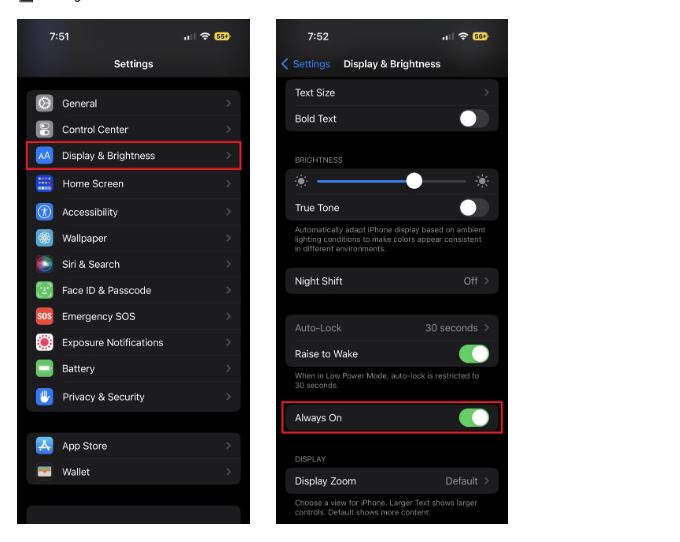
- Open Settings on your iPhone and head to the Display & Brightness page.
- Scroll down and locate the Always On toggle.
- Now tap to turn off the always-on display.
2. Limit the Frame Rate by Disabling ProMotion
While high refresh rate displays are pleasing to look at, and even better to use, they do threaten to strain the battery. The iPhone 13 Pro handled the implementation this relatively well, and we expect the same from the iPhone 14 Pro. But, if you’re ever in a pinch, limiting ProMotion to disable the high refresh rate display will help make the most of your iPhone’s remaining charge.
Follow the steps below to limit your iPhone’s refresh rate.
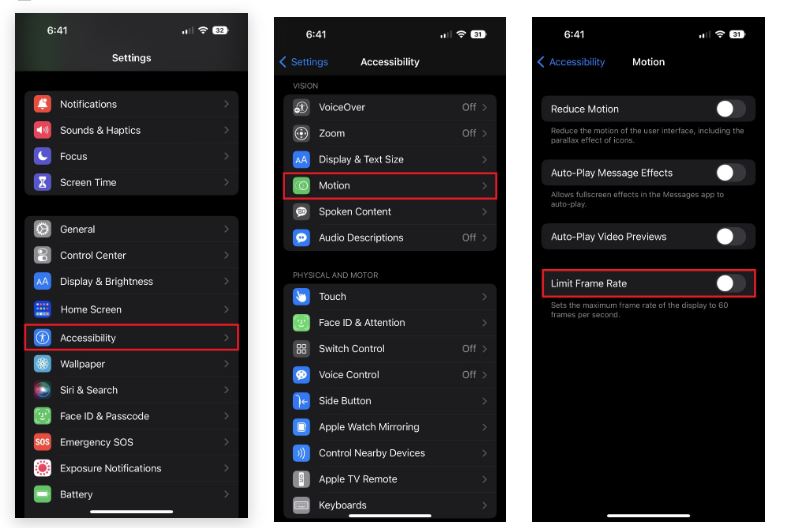
- Open Settings on your iPhone and go to Accessibility.
- Now, tap on Motion.
- To restrict your phone to 60Hz, enable the Limit Frame Rate toggle.
3. Turn Off Auto-Brightness
Another critical tip to saving battery life on iPhone is to disable iOS’s Auto-Brightness feature. This is even more important on the iPhone 14 Pro, since the device can hit a peak of 2000 nits when used outdoors. That brightness level can severely strain the battery if used for a prolonged period.
You can turn off Auto-Brightness by following the steps listed below:
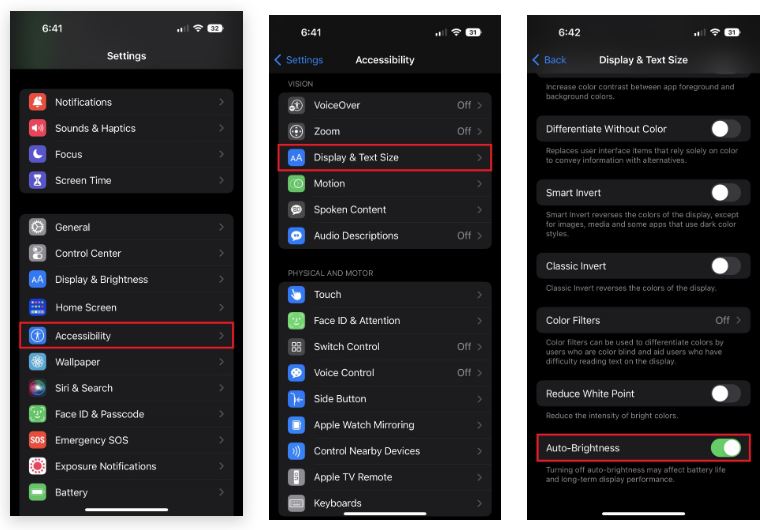
- Open Settings and tap on Accessibility.
- Next, head into the Display & Text Size menu.
- Scroll to the bottom of this screen and turn off Auto-Brightness.
4. Disable Keyboard Haptics
A new addition in iOS 16, Keyboard Haptics is something you’re unlikely to appreciate unless you’ve experienced it firsthand. Unfortunately, the feature comes with a warning in tow: one of Apple’s support pages states the feature will negatively impact your iPhone’s battery.
While the feature is turned off by default, if you’ve turned it on or restored your iPhone 14 Pro from a device backup that was using the feature, then you should turn it off now. Just follow these steps:
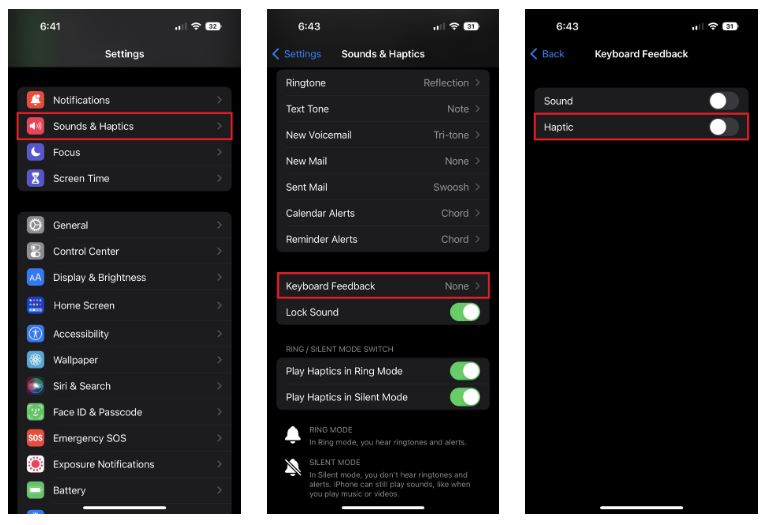
- Open Settings and select Sounds & Haptics.
- Locate and tap on Keyboard Feedback.
- From the two options, disable Haptics.
5. Reduce Background App Activity
Next on our list is limiting background app activities on your iPhone. It’s common knowledge today that apps on our devices are often active in the background. Working behind the scenes and constantly refreshing data helps ensure you receive notifications on time and can hop into applications—often in the same state that you left them—without much lag.
But, constant background activity can cause substantial battery drain and use up mobile data. The former is more prevalent in areas with poor cellular reception. Hence, disabling the Background App Refresh feature might save some battery life on your iPhone 14 Pro.
Follow the steps listed below to make the required changes.
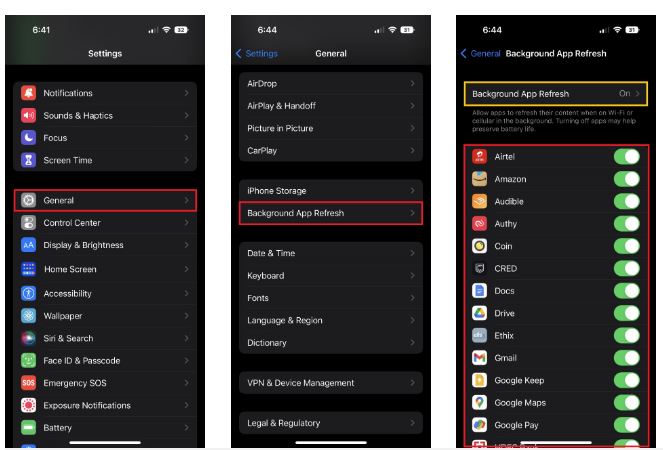
- Open Settings and go to General.
- Locate the Background App Refresh subsection
- You will have the option to individually decide which apps can refresh in the background. Turn off the toggle for applications that you deem unnecessary.
6. Disable 5G
Last on our list is disabling 5G on the iPhone. Irrespective of its speed advantage, the hardware components responsible for connecting to 5G networks will drain extra power. In addition, the lack of 5G-enabled towers might result in your device constantly hunting for a signal. To that end, we recommend turning off 5G on your iPhone 14 Pro to help extend its duration of use on a charge.
Follow the steps listed below to do so:
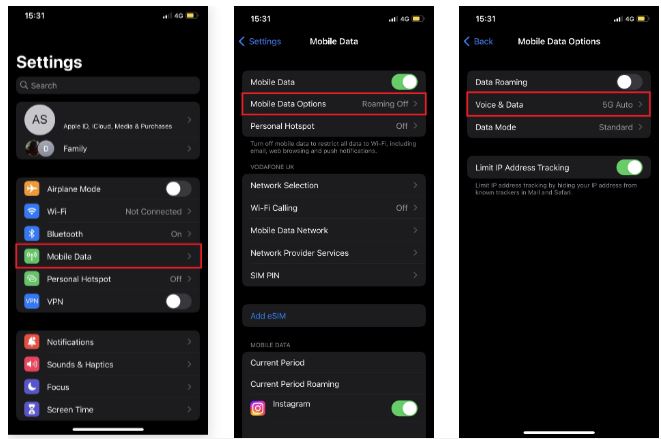
- Open Settings on your iPhone and tap on Cellular.
- Now, tap on Cellular Data Options, followed by Voice & Data.
- On this screen, choose 5G Auto or LTE.
This post was created with our nice and easy submission form. Create your post!
0 Comments